

Compliance X-Ray: Instant Audit Reporting (SOC2 and SOX Made Easy)
Passing security and compliance audits (like SOC2, SOX, or HIPAA) can be incredibly stressful. When an auditor asks, “Exactly who can view or edit this sensitive customer data?”, answering them is usually a nightmare. Salesforce’s security model uses complex, overlapping layers of Profiles and Permission Sets, making it very difficult to see the full picture. Jataka’s Compliance X-Ray eliminates this headache. It instantly calculates the Net Effective Access of any field in your org, giving you a crystal-clear list of exactly who can see or change your data. Here is how you can generate an audit-ready report in seconds.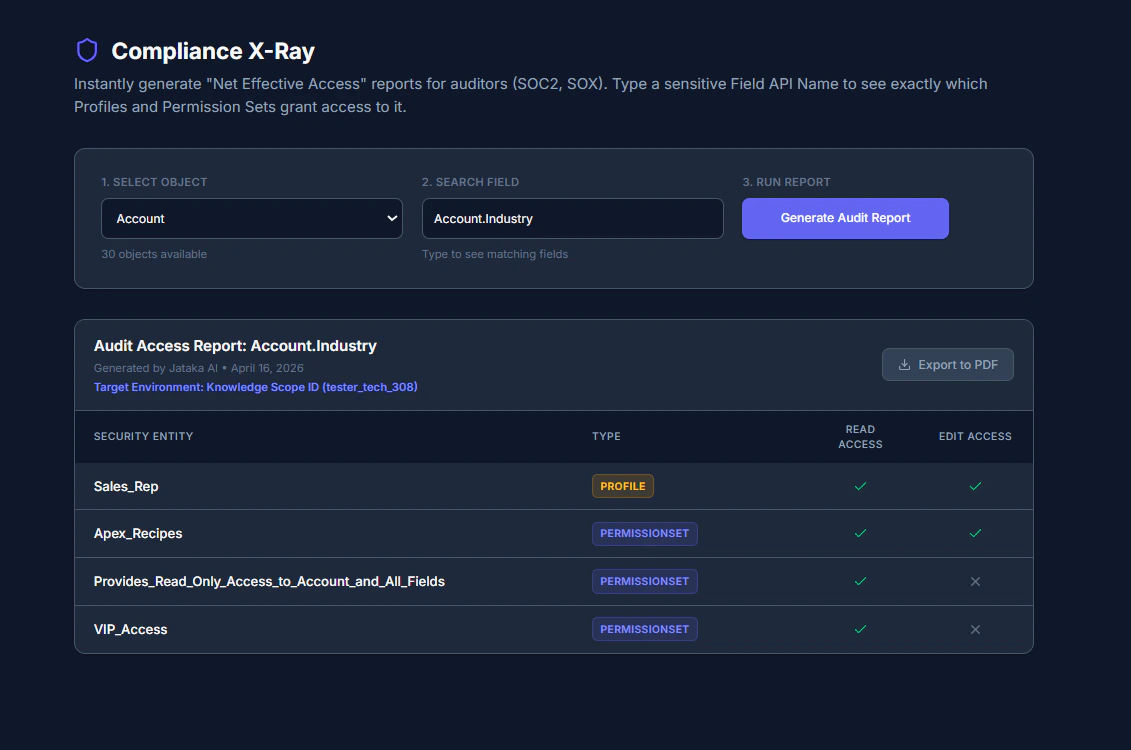
How to Generate a Net Effective Access Report
No more clicking through dozens of Salesforce setup screens. Jataka gives you the answer in three simple steps:1) Select Object
Choose the standard or custom object where your sensitive data lives (for example,Account, Contact, or Payroll__c).
2) Search Field
Type the API name of the specific field you need to audit (for example,Account.Industry or SSN__c). Jataka auto-suggests matching fields as you type.
3) Run Report
Click the Generate Audit Report button. Jataka instantly maps your metadata and calculates exactly which security entities grant access to that field.Decoding Your Audit Access Report
Once generated, the dashboard presents a clean, easy-to-read matrix of your org’s security landscape for that specific field.- Security Entity: The exact name of the Profile or Permission Set granting access (for example,
Sales_ReporVIP_Access). - Type: A badge identifying whether the entity is a
PROFILEor aPERMISSIONSET. - Read Access: A checkmark means users assigned this profile or permission set can view the field. An
Xmeans it is hidden. - Edit Access: A checkmark means users can update the field. An
Xmeans it is read-only.
Export to PDF: Built for Auditors
Auditors do not want to log into your dashboard, they want documentation. Once your report is generated, click the Export to PDF button. Jataka generates a clean, timestamped, professional PDF document. The exported PDF includes:- The exact field API name audited.
- A verifiable timestamp showing when the report was run.
- The target environment (Knowledge Scope ID), so auditors know exactly which Salesforce instance was tested.
- The full Net Effective Access table in a review-friendly format.