> ## Documentation Index
> Fetch the complete documentation index at: https://docs.jataka.io/llms.txt
> Use this file to discover all available pages before exploring further.
# MCP Server for VS Code
> Install the Jataka VS Code extension, authenticate with dashboard token, and use MCP tools for governed development.
Use Jataka's MCP integration to bring project rules, dependency intelligence, and governed code generation directly into your IDE.
## Install and Authenticate the Extension
### 1) Install Jataka from VS Code Marketplace
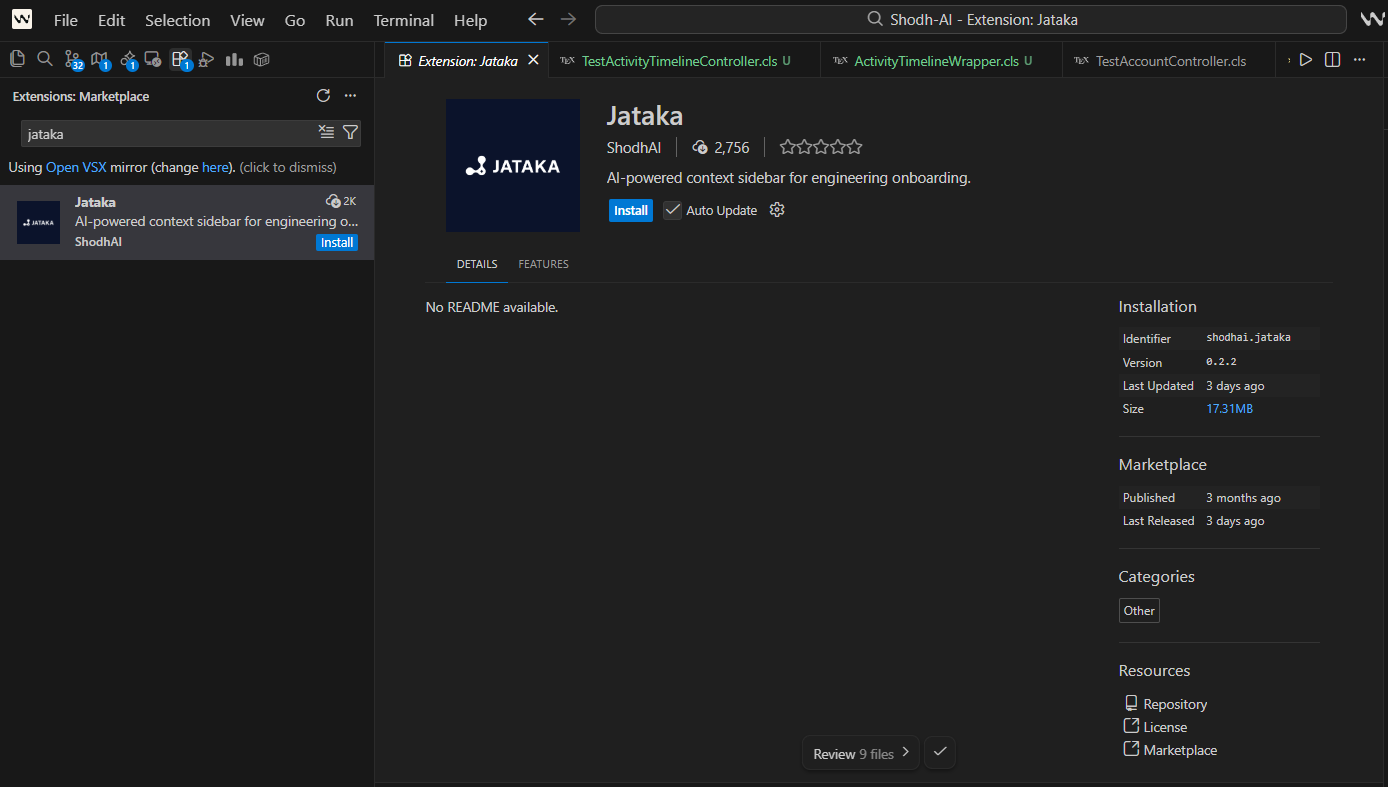
Search for the VS Code extension named **Jataka** and install it.
 ### 2) Start Login from the Sidebar
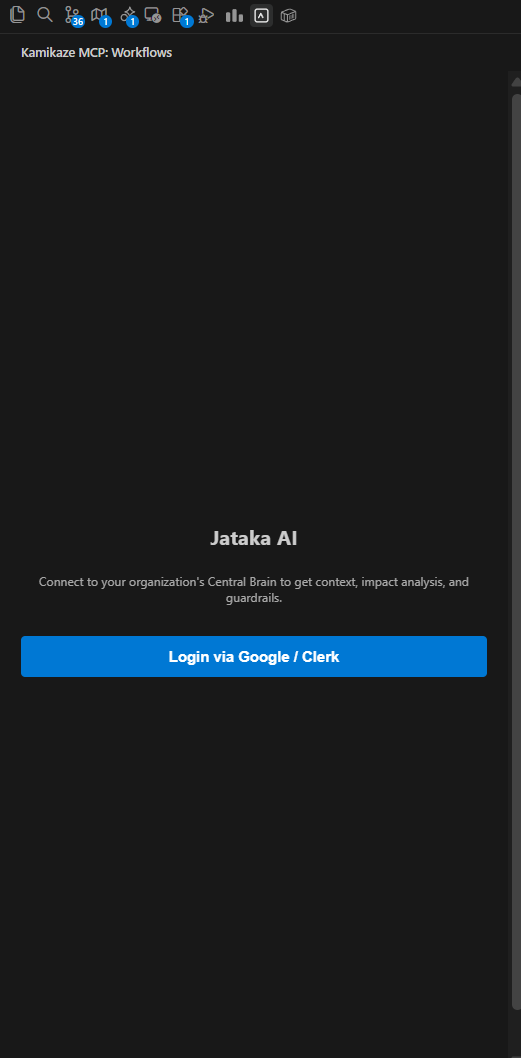
Open the Jataka sidebar and click **Login via Google / Clerk**.
### 2) Start Login from the Sidebar
Open the Jataka sidebar and click **Login via Google / Clerk**.
 ### 3) Use Dashboard Auth Token
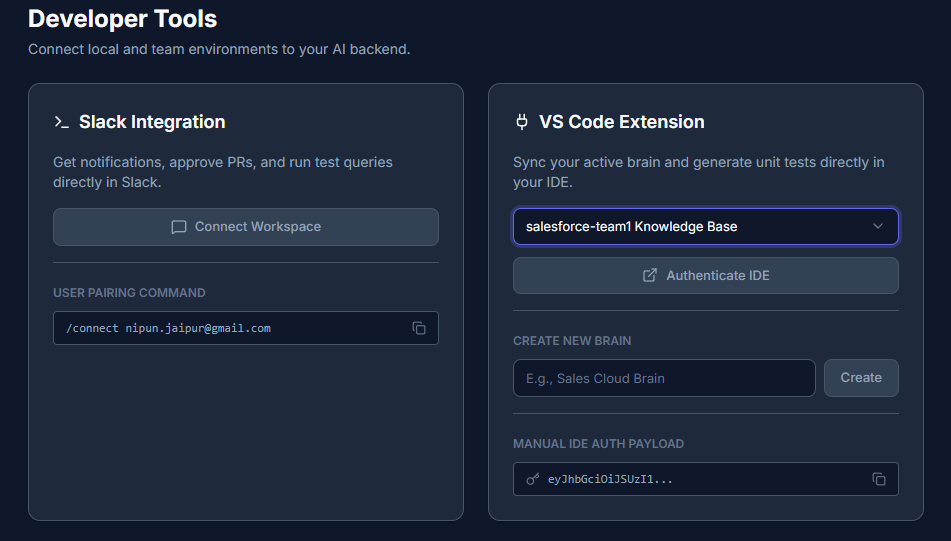
After login opens the dashboard, select the required brain, copy the auth token, then click login in VS Code again and paste the token.
### 3) Use Dashboard Auth Token
After login opens the dashboard, select the required brain, copy the auth token, then click login in VS Code again and paste the token.
 ## Core MCP Workflows in IDE
### Check Selection Impact
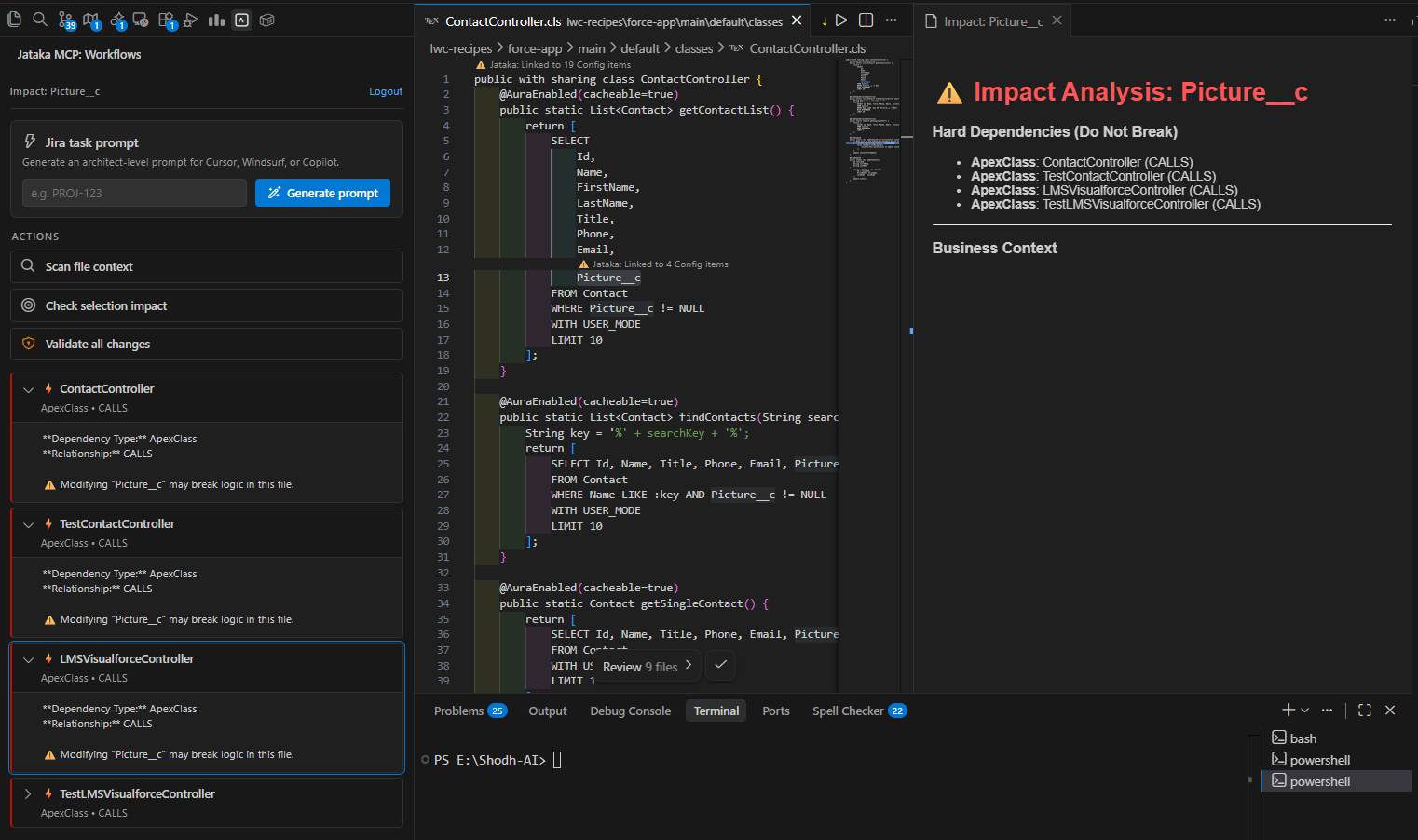
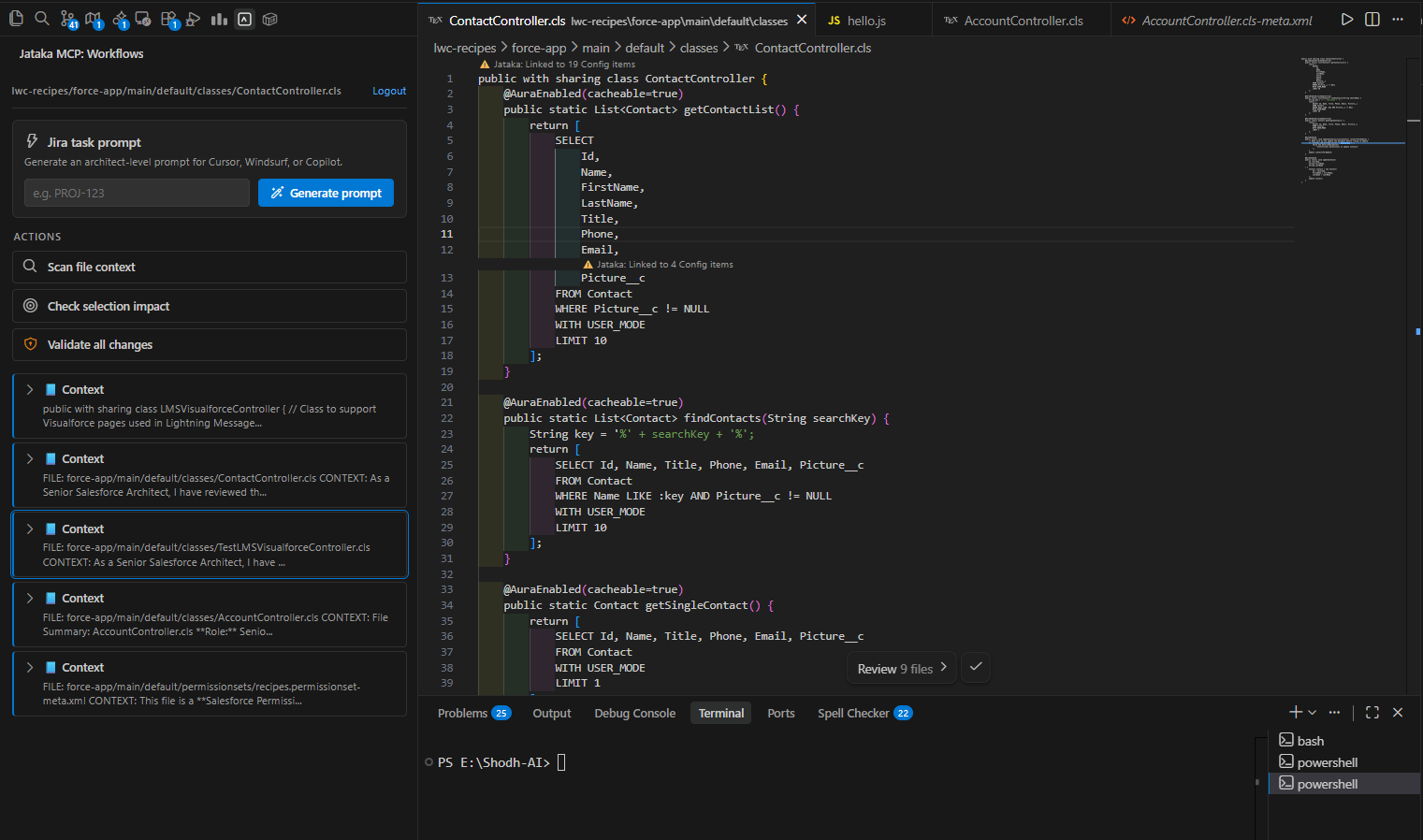
Run impact analysis for a selected variable, field, or class name before editing.
## Core MCP Workflows in IDE
### Check Selection Impact
Run impact analysis for a selected variable, field, or class name before editing.
 ### Fetch File Context
Retrieve focused context for a specific file directly from the knowledge graph.
### Fetch File Context
Retrieve focused context for a specific file directly from the knowledge graph.
 ### Generate Architecture-Level Jira Prompt
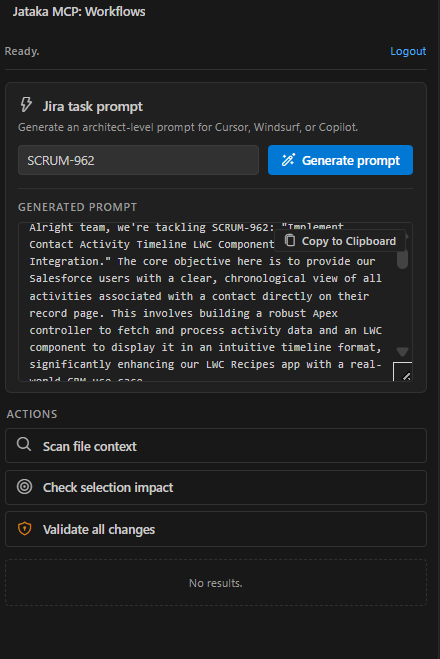
Generate a guided implementation prompt for a Jira ticket. Jataka analyzes dependencies and architecture context first, then drafts a high-quality prompt.
### Generate Architecture-Level Jira Prompt
Generate a guided implementation prompt for a Jira ticket. Jataka analyzes dependencies and architecture context first, then drafts a high-quality prompt.
 ### Use Prompt in Chat
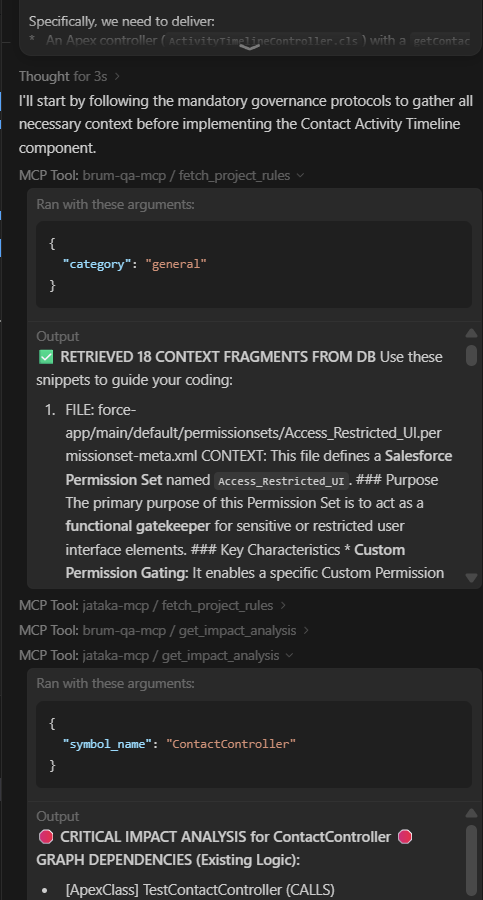
Copy the generated prompt into chat to implement; the assistant then calls the required MCP tools during execution.
### Use Prompt in Chat
Copy the generated prompt into chat to implement; the assistant then calls the required MCP tools during execution.
 ## MCP Tools Reference
### `fetch_project_rules`
Always call this at the start of a chat to load the project's coding standards, security guidelines, and mandatory shadow rules.
### `brum_qa`
Ask the Knowledge Graph a question. Use this for architectural questions, history, or logic explanations.
### `get_impact_analysis`
Critical governance tool. Call this before generating any code that modifies a Salesforce field, class, or flow. It checks the Knowledge Graph and scans the current unsaved file for dependencies. If dependencies exist, you must plan how to handle them.
### `fetch_linked_metadata`
Mandatory when you need to read the content of a Salesforce metadata file (class, field, flow). For large XML files, always specify `sub_component_type` to save context. Do not guess the content.
### `brum_search`
Use this to search the knowledge base for specific code snippets, patterns, or architectural decisions.
### `brum_imprint`
Save new coding standards or project rules to the knowledge base. Use after the user defines a new convention.
### `notify_code_change`
Mandatory after code edits. Call this to validate the change against known standards. You must pass the actual code or function body that was changed, not a summary.
## MCP Tools Reference
### `fetch_project_rules`
Always call this at the start of a chat to load the project's coding standards, security guidelines, and mandatory shadow rules.
### `brum_qa`
Ask the Knowledge Graph a question. Use this for architectural questions, history, or logic explanations.
### `get_impact_analysis`
Critical governance tool. Call this before generating any code that modifies a Salesforce field, class, or flow. It checks the Knowledge Graph and scans the current unsaved file for dependencies. If dependencies exist, you must plan how to handle them.
### `fetch_linked_metadata`
Mandatory when you need to read the content of a Salesforce metadata file (class, field, flow). For large XML files, always specify `sub_component_type` to save context. Do not guess the content.
### `brum_search`
Use this to search the knowledge base for specific code snippets, patterns, or architectural decisions.
### `brum_imprint`
Save new coding standards or project rules to the knowledge base. Use after the user defines a new convention.
### `notify_code_change`
Mandatory after code edits. Call this to validate the change against known standards. You must pass the actual code or function body that was changed, not a summary.